
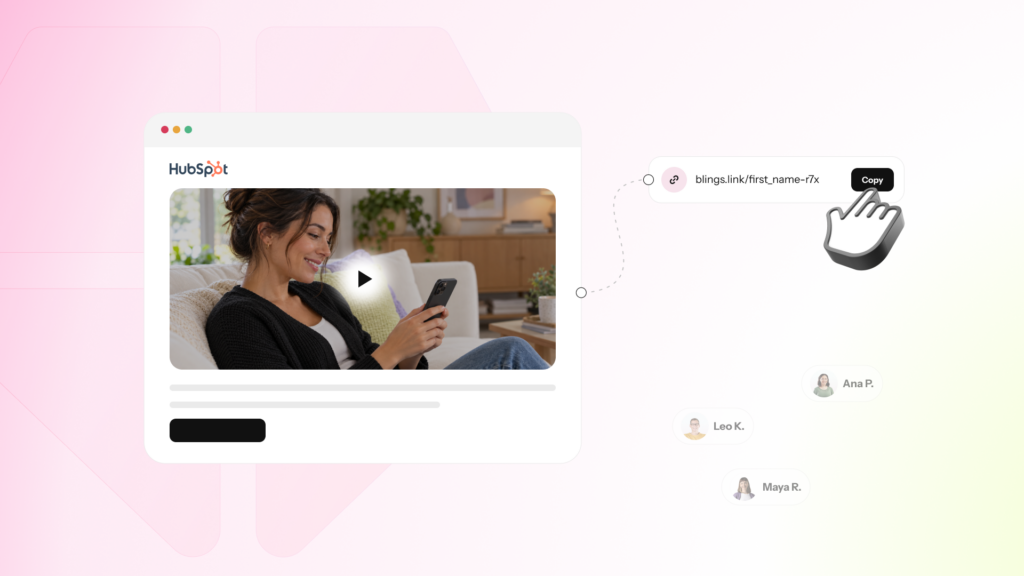
HubSpot already does the hard part. It stores your contacts, it knows their properties, and it swaps those properties into your emails with personalization tokens. Blings uses the same tokens, so adding a Smart Video to a HubSpot email comes down to three moves: copy a link, paste it into your email, and personalize it with the tokens you already use.
Best practices
Personalization
Copy, paste, personalize: how Blings CRM integration works in HubSpot
 Yonatan Schreiber | Nov 2, 2026
What you need before you start
- A published Blings project with its Dynamic Data fields confirmed in the Platform.
- The Smart Video Link from Platform Integration.
- A HubSpot marketing email and the contact properties you want to use, such as first name and plan.
Copy: get the Smart Video Link from Blings
In the Blings Platform, open Integration and copy the generated CRM link. Note the parameter names it expects, such as first_name and plan. You will keep those names and fill their values with HubSpot tokens.
https://yourbrand.mp5.live/welcome?first_name=Sample&plan=Sample
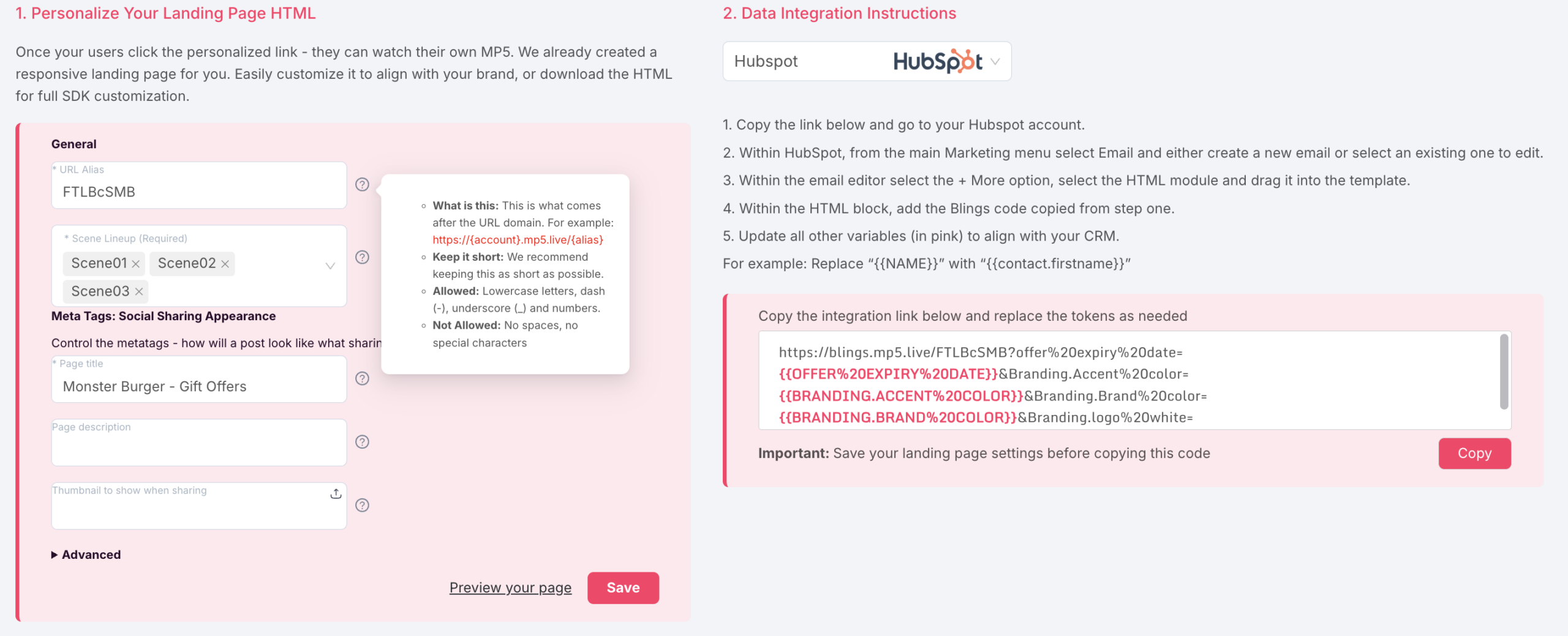
Paste: drop the link into your HubSpot email
In the HubSpot email editor, add the button or text link that will carry the video, and paste the Smart Video Link into its URL field. If you want a personalized preview image in the email, paste the Dynamic Thumbnail URL into the image source the same way.
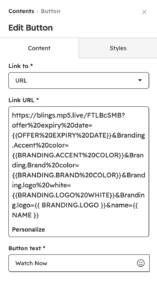
Personalize: swap in HubSpot tokens
Replace each sample value with the matching HubSpot personalization token. HubSpot’s token format includes a built-in fallback, which is worth using so no contact sees a blank:
https://yourbrand.mp5.live/welcome?first_name={{ contact.firstname | default("there") }}&plan={{ contact.plan }}
The property names after contact. must match your HubSpot properties.
HubSpot also lets you insert tokens through its personalize menu rather than typing them, if you prefer.
Test before you send
- Use HubSpot’s test send to a real contact, not just the preview, so the tokens resolve against actual property values.
- Open the email and click through to the video.
- Confirm the name, plan, and content match the contact.
- Test a contact with a missing property to confirm your fallback shows.
When the test looks right, the email is ready to schedule. Build once, personalize forever.
Where this fits in a HubSpot workflow
Because the video lives behind one link, it works anywhere a HubSpot email does: a one-off send, a sequence, or an automated workflow. The link stays the same across all of them, and each contact’s video is generated on their device at the Moment of Open, so a property that changes in HubSpot is reflected the next time they open it.
Frequently asked questions
What token format does HubSpot use for personalized video?
The same personalization tokens it uses for text, such as {{ contact.firstname | default(“there”) }}. You place them as the values in the Smart Video Link.
Can I use a fallback value in HubSpot?
Yes, and you should. HubSpot’s default() filter sets a fallback so a contact missing a property still sees a complete video.
Does this work in HubSpot workflows and sequences?
Yes. The Smart Video Link is one URL, so it works in one-off emails, sequences, and automated workflows alike.
Do I need a HubSpot developer or an API?
No. Pasting the link and adding tokens is done in the email editor. The SDK or API is only needed for backend or CDP-driven data.
Can I add a personalized thumbnail in HubSpot?
Yes. Paste the Dynamic Thumbnail URL into the image source using the same tokens so the preview matches the video.
You may also be interested in
Best practices
Personalization
The Spotify Wrapped playbook: how to run a year-in-review video campaign
Learn more
Best practices
Personalization
What CRM integration really means for personalized video (no API project required)
Learn more
Best practices
Customer experience